
When there's an existing allotment/freesell in the system and you'll load the next allotment for next season, we call this action as "extending".
For Allotments - please refer to the written documentation (contract/email) regarding applicable allotment and release days for the fiscal year you are extending.
For Freesell - most of the time, we just mirror previous/current season's allotment and release days and use it for the next season, unless there's a new written agreement.
1. When extending allotment/freesell, it is a MUST to update the DATE FROM & DATE TO from the Allocation Header filter to the last date of the existing allotment and the end of date of the allocation to be extended. Then click "FILTER" button and select the room/tour that you'll extend and the Allocation Detail Screen will show.
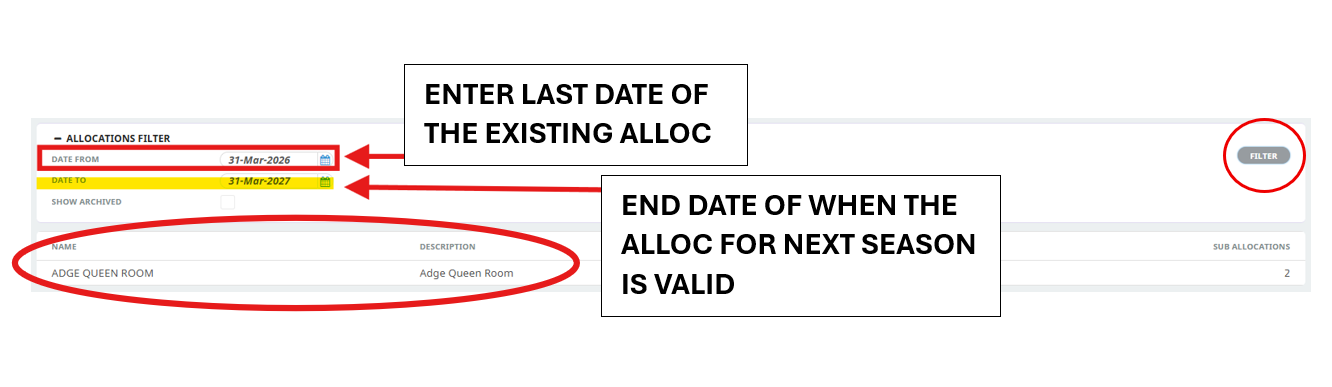
NOTE: The existing allocations will not appear if we only enter the validity for next season. That's why it is important to the DATE FROM with the last date of the existing alloc in TP.
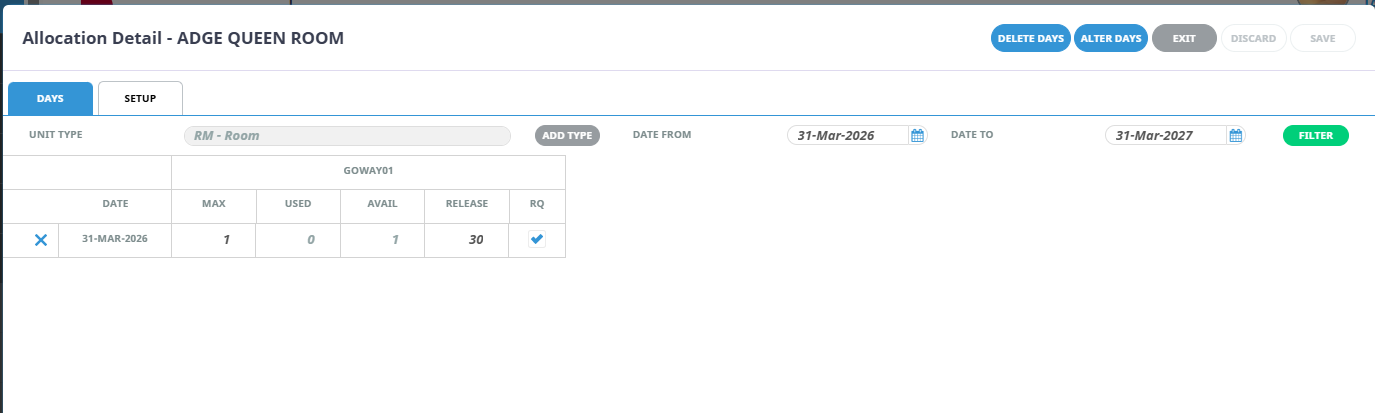
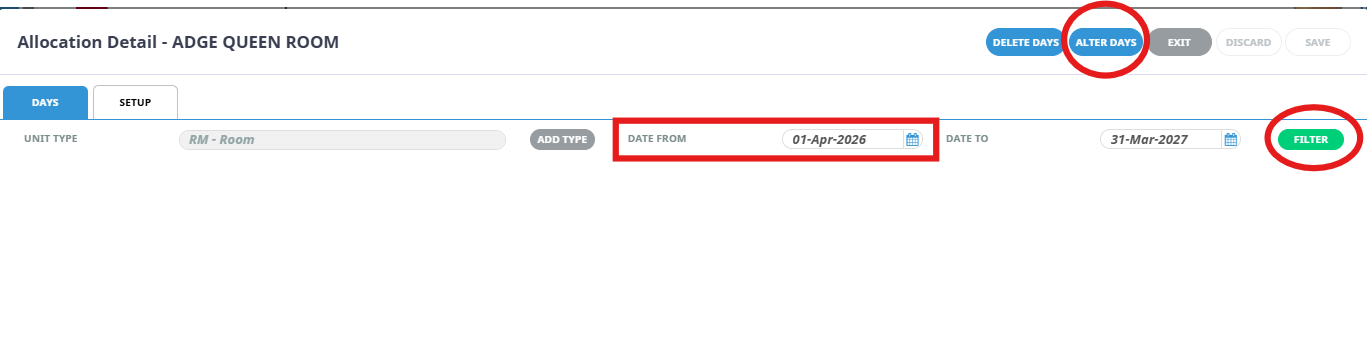
2. On the Allocation Detail screen, set the DATE FROM field to the start date of the new allocations to be loaded.
Click "FILTER" then click "ALTER DAYS".
3. The procedure for extending the allocation from this point on is exactly the same as setting up a new allocation.
Follow the steps when adding Unit Type.
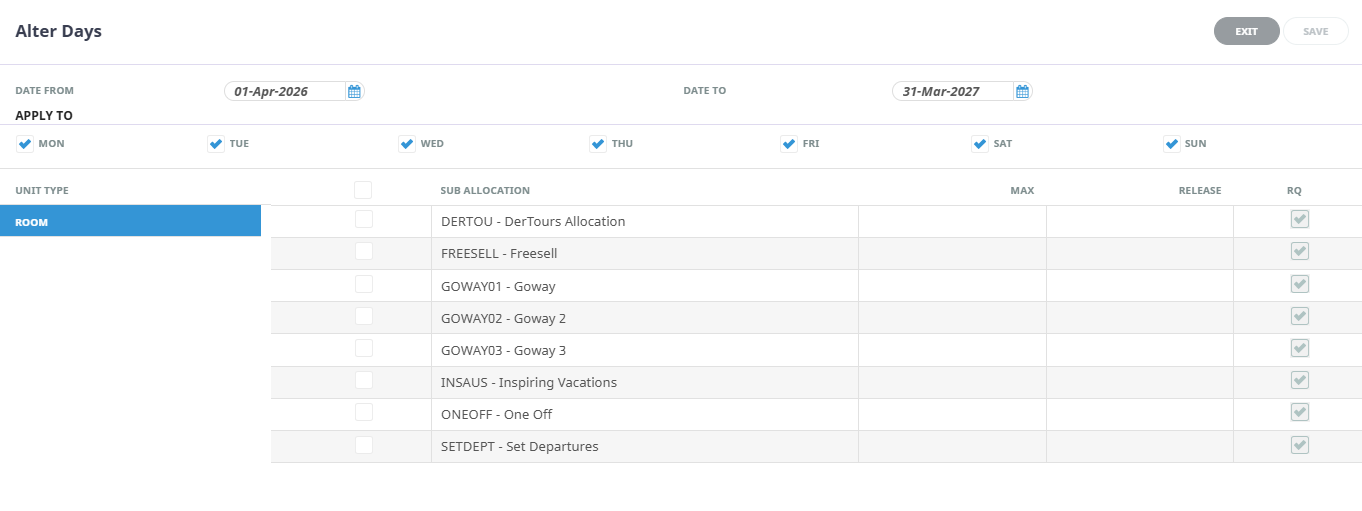
Make sure that the correct unit type is existing: ROOM for Accommodation & PER PERSON for Non-Accommocation/Touring. If this is wrong, then the whole allocation/freesell might need to be updated. Please consult your team lead.
From the Alter Days section, you can also enter specific dates. For example, if the supplier provides different allotments or release days for Low Season and High Season, you can input only the dates relevant to each season instead of entering the entire fiscal year.