
If the supplier has provided allocations—either in the main contract or a separate agreement—you will need to create a new allocation setup from scratch in the Allocations section of the system.
To Enter a New Allotment or Freesale:
- Go to Product Setup and search for the supplier.
- Once you already pulled the supplier, select the ALLOCATIONS tab from the menu then click INSERT ALLOCATIONS.
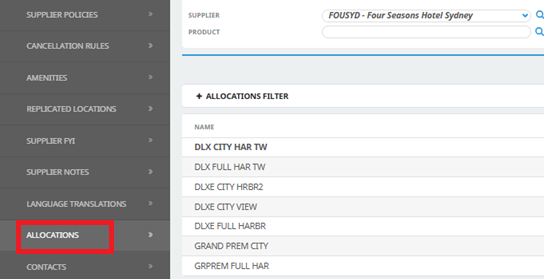

- Enter the validity period of the allotment/freesale in the DATE FROM and DATE TO fields based on the contract.
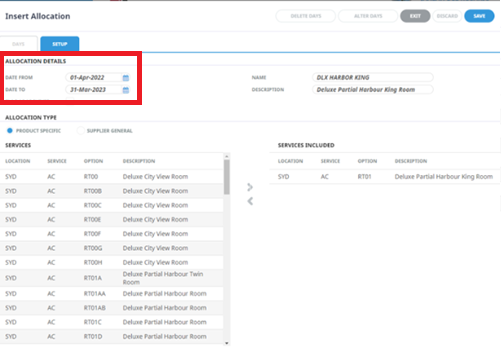
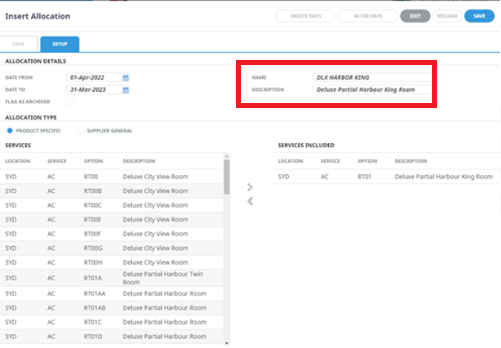
- Name: This is usually the name of the hotel room or the option code for a tour. Since characters are limited, you may need to abbreviate if the name is too long.
- Description: Please enter the full name of the room or tour for which you are creating the allocation.
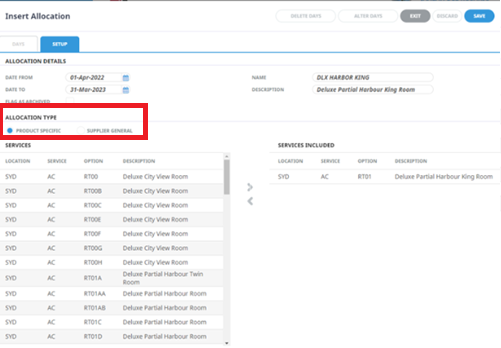
- On the Allocation Type, please tick PRODUCT SPECIFIC (Supplier General means allocation will be valid for all products under that property)
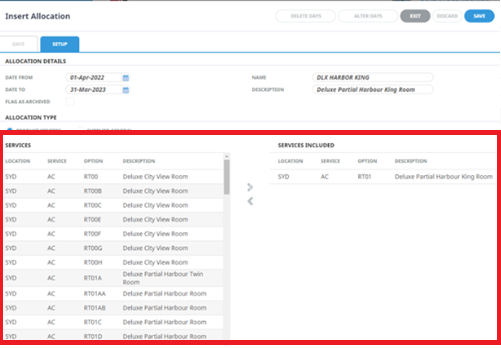
- Make sure you attach the correct room type the allocation/freesell is for. Click the room type under the Services and then
click the arrow ">" so that it will appear on the Services included. This means that you have attached this allocation for
that room/tour.
-Then click SAVE
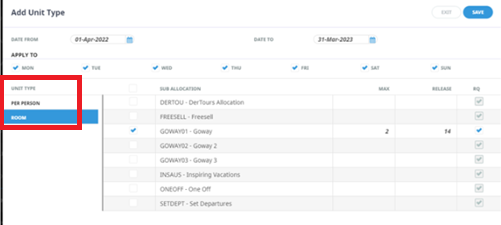
-The "Add Unit Type" screen will pop up, make sure your dates are still correct and here is where we put in the details.
-Select the what the allocation type is for: Per Person is for tours, as day touring is based on per person;
PER Room is for accommodations
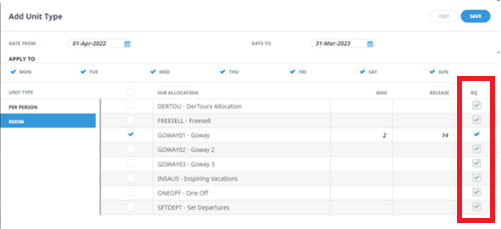
-Make sure RQ is ticked as this allows the consultant to sent through a booking on request if Freesale/Allocation is closed
out.
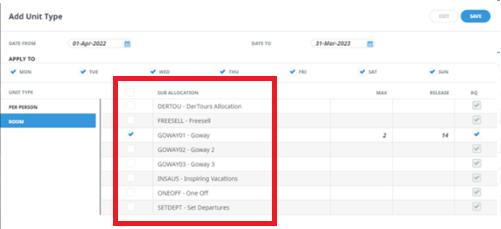
-If you're adding an allocation for a HOTEL, choose PER ROOM instead of PER PERSON, then please select the applicable sub-allocations (GOWAY01, GOWAY02 OR GOWAY03) based on the number of release days specified in the agreement. Once selected, enter the maximum number of rooms allotted to Goway.
-If you are adding an allocation for a TOUR, select FREESELL (commonly used for touring products), choose PER PERSON instead of PER ROOM, then enter the maximum number of persons and the appropriate release period.
The other sub allocations are used for a few different scenarios:
- Freesell is always used for Freesell
- Goway01 is always used for rooms on allotment
- Goway02 would be used where we had rooms with different release period (example on next page)
- Goway03 for the same purpose
Important:
The system will pull allotments from Goway01 down to Goway03.
Please load the allotments with the strictest release days on Goway01, followed by those with less strict release days on Goway02 and Goway03. This ensures we maximize the use of allotments before they are released.
Example:
Goway01 → 1x45 days
Goway02 → 1x21 days
Goway03 → 1x14 days
- Set Dept is used if we set up an allotment that is only to be used for a certain set of dates that is booked in a package for
- a Set Departure
- INSAUS is used for allocations that is particularly for Inspirations Vacations use only.
- DERTOU used for allocations that is particularly for DER Tours use only.
Attaching newly created allocations to Products
When adding a new allotment/freesale that we have never had before. You need to go into the service line in "Product
Setup": Operations > Message Defaults. This has to be done for every service line with allocation/freesale.
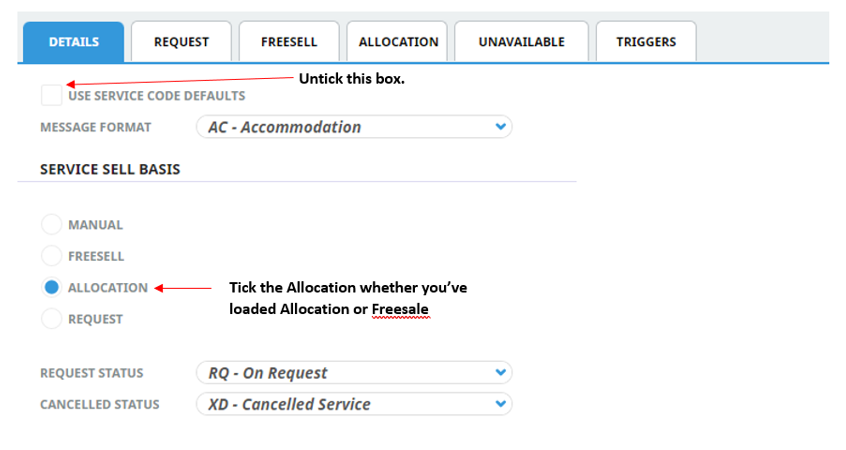
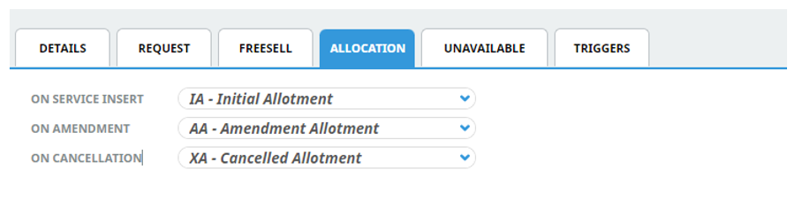
Below should be the setup for Allocation.
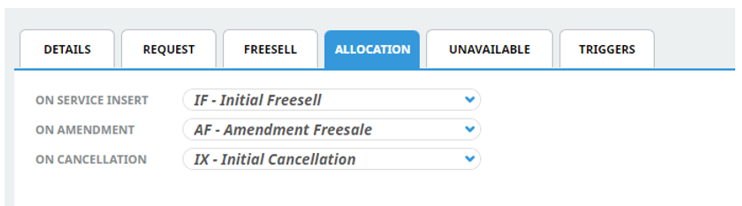
However, if it's Freesell the below messaging codes need to be put in on the "Allocation" tab.
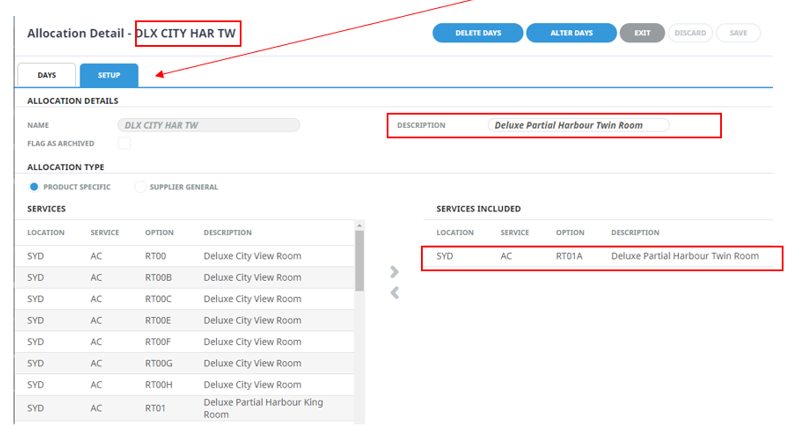
To find out which service lines are attached to our allotments/freesale you can click on the "SETUP" tab and it will show
you which services are included. The allocation detail, description & services included should match.
You may receive requests from consultants to include a service line that is not yet attached in the allocation.
To include the service being requested, you may follow the step mentioned earlier --- tick the room type from the services
column and click the arrow ">", then click save.
Note:
If you are only extending allocations for the current or upcoming season, please refer to the "How to extend Freesell/allotments" article for clear and updated step-by-step instructions.
https://goway.freshdesk.com/support/solutions/articles/44002675249-how-to-extend-allotment-freesell