
ACCOMMODATION
The loading of new hotel shells should follow the same procedure as loading a new product.
Refer to the Contract Folder
Go to:
C:\Users\GowayMNL-PC\Goway Travel Australia\Product - Documents\Contracts\DYNAMIC CONTRACTSSearch for the property you are loading.
Follow Standard Hotel Loading Procedure
Copy and create new supplier.
Load address and contact details.
Set payment terms to 14 days prior to arrival. Forward the copy of dynamic contract to Accounts if bank details and/or payment terms is provided.
Add Notes
Include loading notes, cancellation policy, descriptions, check-in/check-out details, and location coordinates.
Example format for cancellation policy:
Dynamic Rates
Within 24 hours - 1 night fee
Get the policy from the dynamic contract and 3 day buffer on CXX - FIT Cancellation Policy:
Dynamic Rates
Within 4 days - 1 night fee
Do not load the Room Configuration or Child Policy notes.
Product Setup
Please set up as shown below
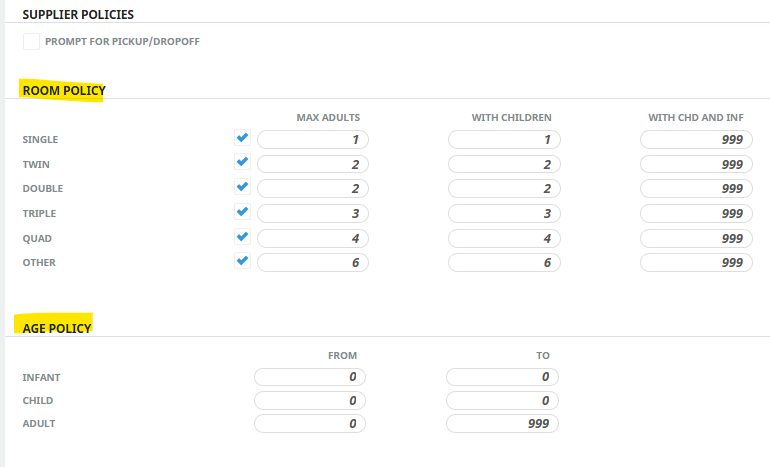
External Access/Amenities/Cancellation Rules
No need to load.
Check other fields
Remove Replicated Locations and Supplier FYI.
Images
Save the hotel image in the designated folder.
Service Lines
No need to load service lines.
Systems Team will load service lines and mapping.
Notify Systems Team
Once loading is complete, email: systems@acrossaustralia.com
NON-ACCOMMODATION
The main difference in loading non-accommodation products is that service lines must be loaded (unlike accommodation).
- Refer to the "CONTRACTS" Folder
Go to the usual folder where contracts are saved and search for the property you are loading. - Supplier Setup
Load the new supplier as per usual and update creditor details accordingly. - Product Setup & Product Notes
Load service lines and update product notes. Do not load the rates. - Images
Save the image in the designated folder. - Notify Systems Team
Once loading is complete, email: systems@acrossaustralia.com